





Optimal Settings for COD Black Ops 7: Graphics, Sensitivity, Controls & Performance Guide

Call of Duty: Black Ops 7 arrives with the fastest-paced multiplayer the series has seen, an expansive Endgame mode, and the largest Zombies map in Treyarch history. But before diving into your first match, your settings can make or break your performance. Proper tuning can dramatically improve your aim, visibility, reaction time, FPS stability, and overall comfort.
This fully original guide covers the best settings in Black Ops 7, including controller sensitivity, mouse settings, movement tweaks, graphics setups for maximum FPS, and audio optimization for better enemy tracking. Whether you’re a competitive player or just want smoother gameplay, these settings will give you an immediate advantage.
Table of Contents
- 1 ⭐ Best Controller Settings in Black Ops 7
- 2 ⭐ Best Aim Settings for Black Ops 7
- 3 ⭐ Best Movement Settings
- 4 ⭐ Best Combat Settings
- 5 ⭐ Best Mouse & Keyboard Settings in Black Ops 7
- 6 ⭐ Best Graphics Settings for Maximum FPS & Visibility
- 7 ⭐ Best Audio Settings for Footstep Detection
- 8 ⭐ Why GladiatorBoost Helps Improve Your Black Ops 7 Grind
- 9 ⭐ Final Tips for Best Performance in Black Ops 7
⭐ Best Controller Settings in Black Ops 7
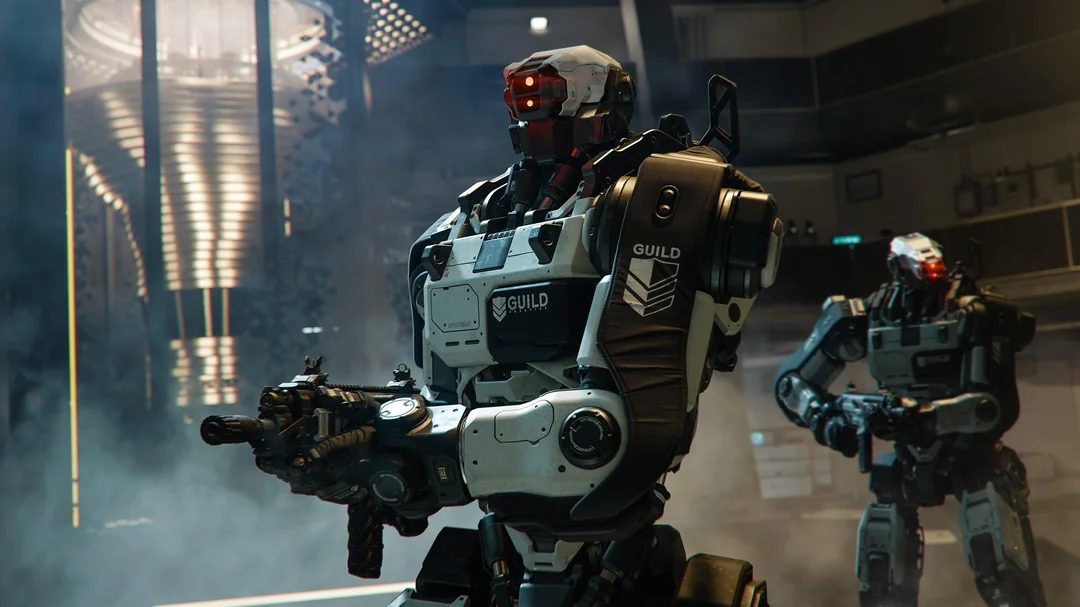
Controller players rely heavily on input responsiveness and aim assist behavior. These settings prioritize precision, movement control, and fast reaction times.
Recommended Controller Inputs
-
Button Layout: Bumper Jumper or Tactical (or create a custom layout tailored to your muscle memory)
-
Stick Layout: Default
-
Horizontal & Vertical Sensitivity: Personal preference, but many competitive players use 6–9
-
Swap LB/RB with LT/RT: On (if using stick-and-move variants)
-
Controller Vibration: Off (removes aim shake)
Stick Deadzones
-
Left Stick Min: As low as possible without drift
-
Right Stick Min: Same as above
-
Stick Max Values: Preference-based
Small deadzones improve micro-aiming—essential for winning sniper duels and SMG skirmishes.
⭐ Best Aim Settings for Black Ops 7
Tight, responsive aiming is essential across all modes.
Suggested ADS Values
-
ADS Sensitivity Multiplier: 0.75–0.85
-
ADS Sensitivity Transition Timing: Instant
-
Aim Response Curve Type: Dynamic
-
Aim Assist: On
Dynamic curve + 0.75 ADS offers lethal precision without making the aim feel too slow.
⭐ Best Movement Settings
Black Ops 7 features smoother traversal and more intelligent movement assistance. Proper tuning lets you break cameras, slide-cancel effectively, and maintain fluid control.
Recommended Movement Options
-
Sprint Assist: On
-
Tactical Sprint Assist: On
-
Corner Slice: On
-
Mantle Assist: Off
-
Slide/Dive Behavior: Tap to Slide
-
Auto Move Forward: Off
-
Sprint/Tactical Sprint: Toggle
-
Sprinting Door Bash: On
These settings keep movement fast and intentional while reducing unwanted mantles or accidental dives.
⭐ Best Combat Settings
Combat Optimization
-
ADS Behavior: Hold
-
Melee Behavior: Hold
-
Interact/Reload: Tap to Reload
-
Weapon Mount Exit: Instant
-
Depleted Ammo Weapon Switch: On
-
Mantle Cancels Reload: On
These options avoid animation slowdowns and ensure your combat flow stays smooth.
⭐ Best Mouse & Keyboard Settings in Black Ops 7
Mouse players should tune their settings for responsiveness and consistency during flicks, tracking, and micro-corrections.
Recommended Mouse Settings
-
Sensitivity: Player preference (most competitive players use 5–10 at 800 DPI)
-
Vertical Sensitivity Multiplier: Equal to horizontal
-
ADS Sensitivity Multiplier: 0.75–0.85
-
Mouse Acceleration: 0
-
Mouse Smoothing: Off
-
Mouse Wheel Delay: Minimal
Keybinds
Stick with binds you’ve used across past COD titles or other shooters. Familiarity boosts performance more than any single change.
Movement (KB&M)
-
Crouch: Toggle
-
Prone: Toggle
-
Mantle: Off (prevents accidental vaulting)
-
Walk Behavior: Hold
-
Tactical Sprint Activation: Single Tap Run
⭐ Best Graphics Settings for Maximum FPS & Visibility
Black Ops 7 is visually demanding—especially in 120+ FPS competitive environments. These settings maximize clarity, visibility, and performance without making the game look muddy.
Display Settings
-
Display Mode: Fullscreen Exclusive
-
Refresh Rate: Match monitor
-
Resolution: Native
-
V-Sync: Off
-
NVIDIA Reflex: On + Boost
Reflex reduces input delay dramatically, especially on high-refresh monitors.
Quality Settings (Performance-Focused)
-
Render Resolution: 100
-
Dynamic Resolution: Off
-
Upscaling: DLSS (Quality or Balanced)
-
Texture Resolution: Normal or High
-
Particle Resolution: Low
-
Shader Quality: Medium or High
-
Ray Tracing: Off
-
Shadow Quality: Normal
-
Motion Blur: Off
-
Volumetric Quality: High
-
Water Quality: All
Turning off motion blur and ray tracing gives the biggest FPS gains.
View Settings
These settings dramatically influence target visibility and reaction times.
-
Field of View: 120
-
ADS FOV: Affected
-
Weapon FOV: Wide
-
3rd Person FOV: 90
-
1st Person Camera Movement: Least (50%)
-
Weapon Motion Blur: Off
A high FOV widens your peripheral vision, perfect for high-speed engagements.
⭐ Best Audio Settings for Footstep Detection
Hearing footsteps clearly is crucial for winning close-range encounters.
Recommended Audio Settings
-
Master Volume: 100
-
Effects Volume: 100
-
Dialogue Volume: ~80
-
Audio Mix: Treyarch Mix
-
Enhanced Headphone Mode: Off
-
Reduce Tinnitus Sound: On
The Treyarch Mix provides some of the clearest directional audio in the game.
⭐ Why GladiatorBoost Helps Improve Your Black Ops 7 Grind
Optimizing your settings is only the first step. If you want to level weapons faster, unlock camos efficiently, or practice movement and aim without sweaty lobbies ruining the experience, GladiatorBoost’s Black Ops 7 Boosting services offer a streamlined solution. Their expert boosters help with camo grinding, leveling, and bot lobbies so you can master your settings in a low-pressure environment and dominate once you’re ready for real matches.
⭐ Final Tips for Best Performance in Black Ops 7
-
Disable motion blur and reduce shadows for higher clarity
-
Keep ADS sensitivity below your hip-fire sensitivity
-
Use DLSS for smoother FPS if you’re GPU-limited
-
Practice movement and aiming in controlled environments
-
Stick to the same button/keybind layout across games
With these optimized settings, your Black Ops 7 experience will feel smoother, more responsive, and more competitive from the start.
Related Guides
ARC Raiders Red Coral Jewelry Farming Guide: Best Locations and Fastest Loot Routes
Best Early Cars in Forza Horizon 6: Fastest Budget Unlocks for New Players
Forza Horizon 6 House Locations Guide: Every Home, Price, Perk, and Unlock Requirement
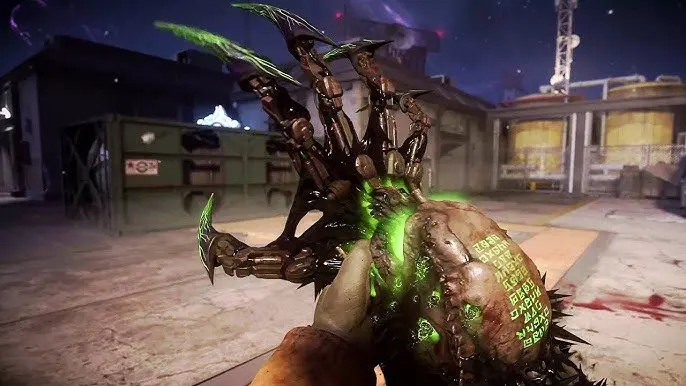
Black Ops 7 Zombies Wonder Weapons Ranked: The Ultimate Tier List